I started using AI coding tools the way many developers did. I kept a browser tab open with ChatGPT and pasted in snippets or error messages when I got stuck.
It worked. But it was slow. Every interaction meant switching context and copying code back and forth.
Later, I tried editor tools like GitHub Copilot. It felt like autocomplete on steroids. Sometimes it helped. Often it guessed wrong. I spent more time fixing suggestions than using them.
Then I started using Claude Code.
It runs in the terminal and works directly inside the project. That changes everything. Instead of isolated snippets, the model can see the whole codebase and interact with it.
After a few weeks, the workflow clicked. AI stopped feeling like a side tool and started feeling like part of the development process.
In this article, I’ll show how Claude Code works, how to set it up, and the workflow I use to get the most out of it.
Let’s dive in!
Key takeaways:
Agentic engineering means AI turns from assistant to collaborator. Instead of just answering questions or simple autocomplete, Claude Code can explore codebases, plan changes, and execute tasks on its own.
Context management determines output quality. Structured documentation, subagents, and targeted tools keep the model focused and reduce hallucinations.
Automation improves as you build repeatable workflows. Custom commands, agents, and skills turn repeated prompts into reusable development workflows.
Claude Code runs directly in the terminal. That small detail changes how you work with AI.
When you start it inside a project, it runs from the project root. That means it can see the entire codebase.
It understands the structure of the project and how files relate to each other. That broader context improves the quality of its responses and the changes it proposes.
Running in the terminal also means the tool can interact with the local machine. It can read and write files, inspect the project structure, and run commands when needed.
Claude Code operates in its own shell, so it can also work with other CLI tools that are already installed on the system.
For example, it can interact with tools such as:
The GitHub CLI to generate pull request descriptions
The Firebase CLI to configure authentication or other services
Project tooling that already runs in the terminal
Because of this setup, the model becomes an integral part of the development environment rather than a separate assistant you consult in another window.
Claude Code also supports multiple models that you can switch depending on the task. Each model has a different tradeoff between speed and reasoning.
Haiku works best for fast tasks like scanning the project or locating files
Sonnet offers a balance between speed and deeper reasoning
Opus handles complex tasks such as architecture discussions or feature planning
In short, with Claude Code, AI stops being a separate assistant. It becomes another tool in the development environment.
Setting up Claude Code in a project
Getting started with Claude Code is simple. If you have a machine with terminal access, you can install it and start using it within minutes.
It works on macOS, Linux, and Windows, and you can install it through the official script or a package manager.
Once installed, you start Claude Code from inside a project directory. The moment you run it, a session begins.
From that point on, the tool runs inside its own shell and has access to the project files and any CLI tools available on your machine.
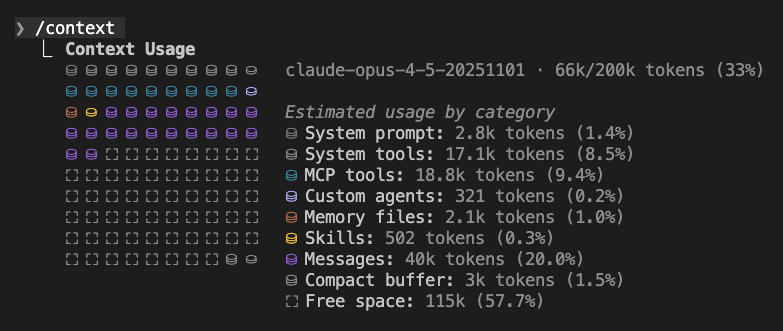
Claude Code sessions also have a few practical limits you need to understand. Each session typically lasts several hours and tracks usage through time and token consumption.
There is also a context window limit. As the conversation grows and more files are loaded, the tool approaches that limit, which can affect performance.
In practice, this means you need to think about how to manage context during longer sessions.
Some common ways to stay within limits include:
Compressing the current context with commands like /compact
Clearing the conversation and starting fresh when necessary
Using subagents so each task runs in its own context window
The most important setup step, however, happens when you start working in a project for the first time. Claude Code recommends running the /init command.
This command scans the entire project and generates a file called CLAUDE.md. That file acts as a reference document that the AI reads at the start of every new session.
It stores important information about the project, such as architecture, dependencies, and coding conventions. Over time, this file becomes a useful place to record edge cases and project rules.
If the model struggles with a specific pattern or requirement, you can document it there. In the next session, Claude reads that information and avoids repeating the same mistakes.
The setup process teaches the AI how your project works and that context helps it give better answers from the start.
Automating development with commands and agents
One of the biggest advantages of Claude Code is automation.
Instead of writing the same prompts again and again, you can use commands and agents to turn common workflows into repeatable tools.
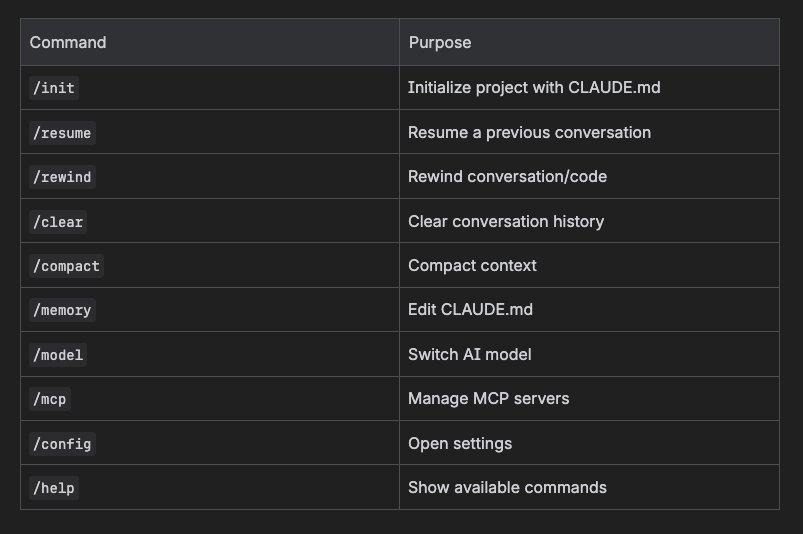
Claude Code already includes several built-in slash commands. These help you manage sessions, switch models, or work with the project environment.
For example, you can initialize a project, return to a previous conversation, compress the current context, or switch between models depending on the task.
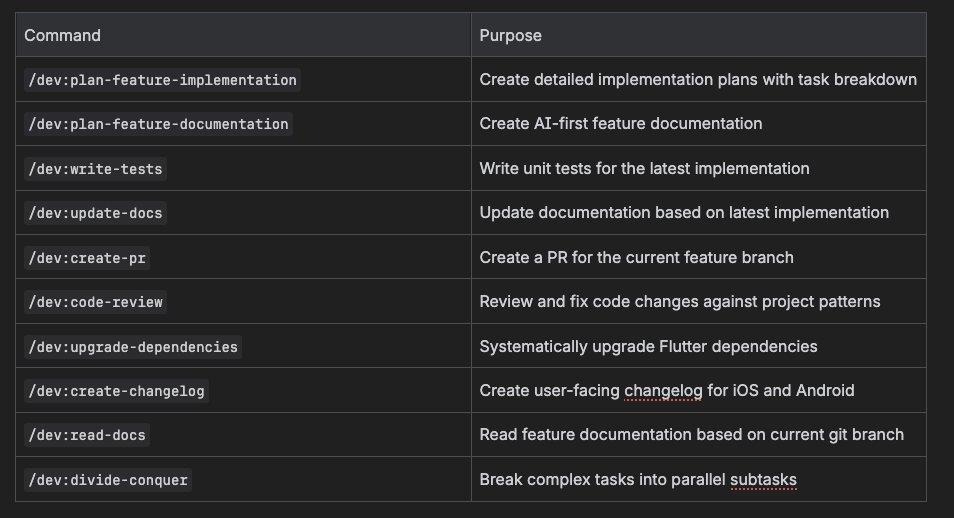
But the real power comes from custom commands. Custom slash commands let you package a set of instructions into a reusable workflow.
Here’s a couple custom commands I created:
They are simple Markdown files that define what the model should do and which tools it should use.
Instead of writing a long prompt every time, you run a command and pass a few arguments.
Each command involves a set of steps that would otherwise require several prompts.
Claude Code also supports agents and subagents. These allow the model to delegate work instead of handling everything in one conversation.
A subagent runs in its own context window. It performs a specific task and returns only the result to the main agent.
This approach keeps the main conversation focused and prevents the context window from filling up with unnecessary details.
Claude Code includes a few built-in subagents that support this workflow:
Explorer, which scans the codebase and finds relevant files
Planner, which analyzes the gathered information and creates an implementation plan
General purpose agents, which execute the tasks defined in that plan
You can also create custom agents for specialized tasks.
In practice, the most effective agents are not defined by personality or background. Giving an agent a title like “senior developer” does not improve the results.
What matters is the tools and permissions you assign to it. For example, you might create:
A read-only agent that searches the codebase
An agent that interacts with external services through MCP servers
An agent that focuses only on documentation or testing
Over time, these commands and agents turn Claude Code into something closer to an automated workflow engine.
Instead of prompting the model manually for each task, you define reusable tools and let the system execute them.
Connecting Claude Code to external tools
Claude Code becomes even more powerful when you connect it to external tools.
Instead of manually copying information between systems, the AI can retrieve data directly from the source.
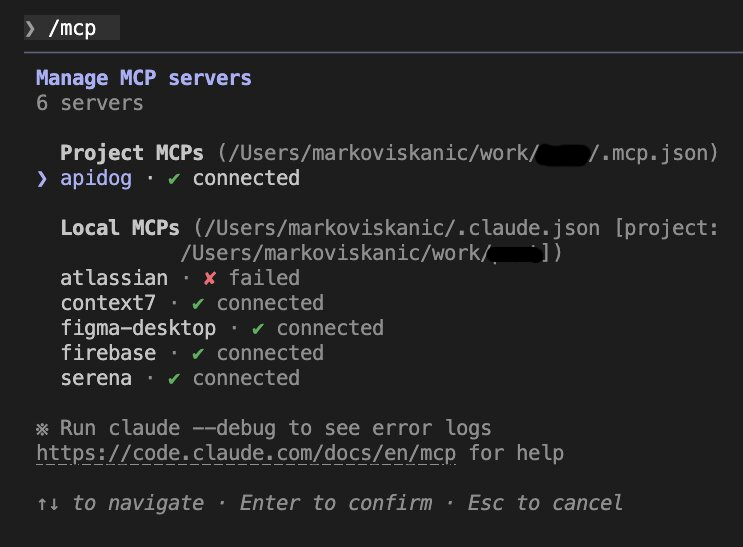
This integration works through Model Context Protocol (MCP) servers. MCP acts as a bridge between the terminal and other applications your team already uses.
Through MCP, Claude Code can access tools such as project management systems, design software, backend services, and documentation platforms.
Here’s a real example:
Once an MCP server is configured, the agent can query those tools directly from the terminal.
You no longer need to copy ticket descriptions, API documentation, or design specs into a prompt.
Some common examples include:
Jira and Confluence, where the agent can read ticket descriptions and project documentation.
Figma, where it can inspect design screens when the desktop app is open.
Firebase, where it can configure authentication, projects, or notifications from the CLI.
Apidog, which exposes backend endpoints and data structures.
These integrations give the AI access to the same information developers normally gather before starting a task. Instead of assembling that context manually, the model can fetch it itself.
Claude Code also includes another layer of automation called skills. Skills are sets of instructions that activate only when they are needed.
For example, mentioning a tool like “Figma” or “Jira” in the prompt can trigger the corresponding skill, which then instructs the agent how to retrieve the required data.
And because skills load only when triggered, they help keep the context window smaller.
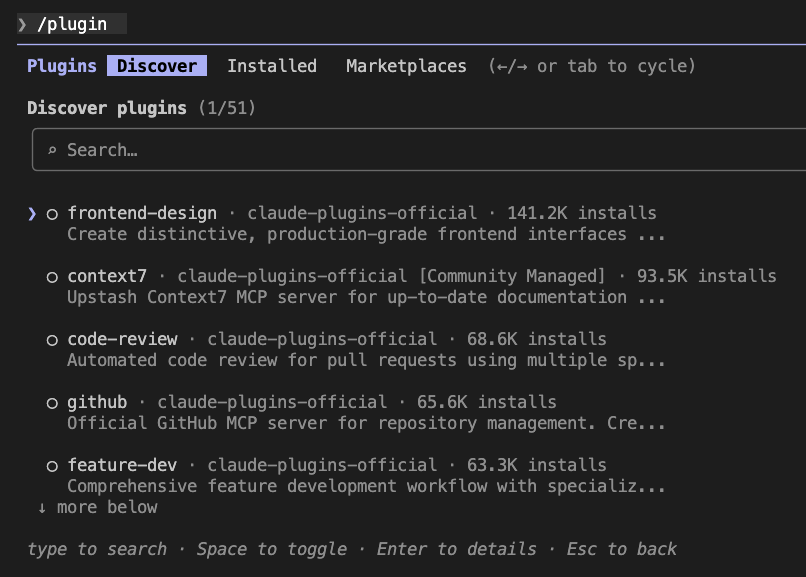
You can bundle these tools into plugins and share them with others. A plugin can include custom commands, skills, and MCP server configurations.
In practice, this allows dev teams to standardize workflows and reuse the same automation across multiple projects.
The result is a much smoother workflow.
Instead of collecting information from several systems and pasting it into a prompt, the AI gathers that context directly from the tools where the data already lives.
Planning work and managing AI context
One of the biggest challenges when working with AI is context management.
The model only remembers what fits inside its context window. As the conversation grows and more files are loaded, that window fills up.
When that happens, the model may lose track of earlier details or start producing weaker answers.
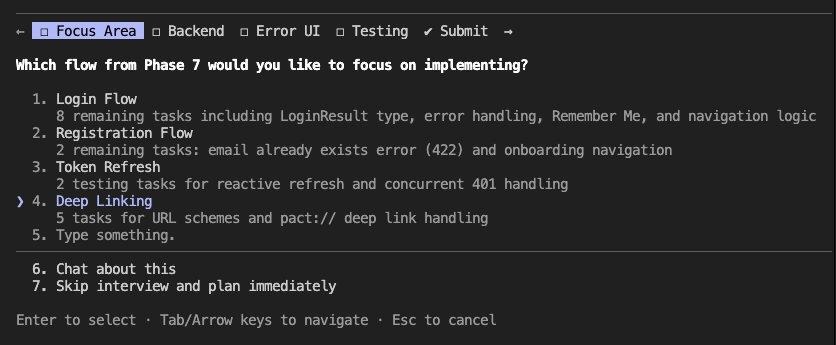
Claude Code includes several features designed to deal with this problem. The most important one is plan mode.
Plan mode allows the model to outline its approach before writing any code.
Instead of immediately editing files, the model first analyzes the task and proposes a plan. It lists the files it wants to change and shows the expected modifications.
This step gives you a chance to review the approach and make corrections early.
It is much easier to adjust the plan than to undo a large set of changes after the model has already modified multiple files.
Once the questions are resolved, the model generates a summary of the final plan for approval.
Another useful detail is that plans are now saved locally. Each plan receives a unique ID, which means you can close a session and return later without losing the agreed approach.
To keep context under control during longer sessions, Claude Code also provides several tools and strategies:
/compact, which compresses the current conversation to reduce token usage.
Subagents, which run tasks in separate context windows and return only results.
Phase-based documentation, which lets the model load only the files relevant to the current task.
These tools help keep the model focused on the information that matters. Without that discipline, your context window can fill up quickly and the quality of the output drops.
In practice, planning and context management go hand in hand. The better you structure the task and control the context, the more reliable Claude Code’s output becomes.
A practical Claude Code workflow
Once you set everything up, the workflow becomes fairly structured. I’ll show you a typical workflow I use.
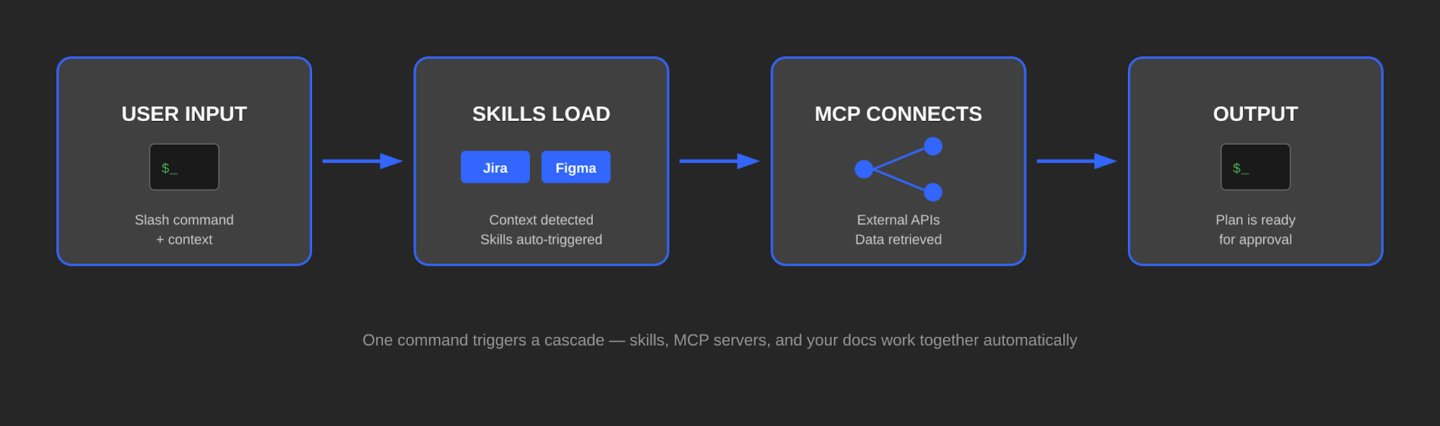
Let’s say I’m implementing a new feature. Here’s what the workflow looks like:
Instead of jumping straight into coding, I start by giving the model enough context to understand the task.
I run a custom command that tells Claude to generate documentation for the feature we are about to implement. The prompt includes a link to a Jira ticket or a Confluence page so the model can pull the requirements directly from the source.
From there, Claude writes documentation for itself. It creates an overview of the feature and breaks the work into separate implementation phases.
Each phase has its own file, which allows the model to focus only on the relevant part of the task instead of loading the entire feature into context.
Once the task is defined, Claude starts gathering technical context through MCP integrations and skills.
After gathering context, the workflow moves into plan mode. Before writing any code, the model proposes an implementation strategy and shows which files it plans to change.
At that point, I review the plan and provide feedback if needed.
This approach changes my role as a developer slightly. Instead of writing every line of code from scratch, my focus is now on guiding the process.
I define the scope, provide feedback on the plan, and let the model handle much of the mechanical work.
Claude Code: FAQs
No. Actually, the exact opposite.
Claude Code works best when you clearly define the scope of a task and review the plan before execution.
If you don’t understand the system, it becomes much harder to evaluate the AI’s suggestions.
You can keep full control.
Features like plan mode allow you to review the proposed changes before any files are modified.
You can edit the plan, reject it, or ask the model to change its approach.
This step is important. It prevents situations where the model writes large amounts of code that do not match the project structure or coding standards.
Yes.
You can share commands, skills, and tool integrations through plugins or shared configurations.
This allows dev teams to reuse the same workflows across different projects. For example, you can standardize how Claude Code generates feature documentation or prepares pull requests.
Over time, these shared tools can significantly speed up development.
Conclusion
AI coding tools are evolving quickly. But the biggest shift is how those models fit into the development workflow.
Claude Code moves AI out of the browser and into the terminal, where developers already work.
That simple change makes the tool much more useful. It can see the project, interact with tools, and help manage complex tasks instead of just answering questions.
After using it for a while, the workflow starts to feel natural. You define the task, review the plan, and guide the implementation while the model handles much of the repetitive work.
The key is treating it like any other development tool.
When you combine planning, context management, and automation, tools like Claude Code become a practical part of the software development process.
Marko’s been building cross-platform mobile apps with Flutter since version 1.0 dropped and has been leading DECODE’s Flutter team ever since. From exam prep tools to networking apps, he’s guided projects from first sketch to production launch, always with an eye on performance, user experience, and clean architecture. He also mentors every new Flutter dev who joins our team.
When he’s not leading projects, Marko’s either lost in his homelab or deep in a stack of audio gear. He’s a tech geek and audiophile in equal measure – think Docker containers by day, rock and metal concerts by night.
A hands-on comparison of Cursor and Claude Code, updated for 2026 with the latest models, pricing, and features, to help your team pick the right AI coding tool.
Expert interview with Ion Hrytsku of SapientPro on what AI can and can’t do in software development, with practical advice on using it without lowering quality.