
Top 25 tools and technologies for custom software development you should use in 2026
A practical guide to the tools and technologies shaping custom software development in 2026, from frontend and backend to cloud and databases.
AI coding tools have changed what “building software” looks like.
You can ship faster with a smaller team. You can also create a mess faster, with code nobody fully understands.
That’s why tool choice matters much more than it used to. Because you need a workflow you can trust.
In this guide, we break down the AI development tools that are actually worth your time in 2026.
We cover all major types, from AI-first editors and coding assistants to coding agents and voice tools.
For each tool, you’ll see what it does, the important features, ideal use cases, pros and cons, and pricing.
Let’s dive in!
Table of Contents
Cursor is an AI-first code editor that brings “chat with your codebase” and agent-style coding into the editor itself, not as a separate tool you copy and paste from.
It indexes your repo so it can pull relevant context from across files, answer questions based on what’s already in your code, and propose changes that match existing patterns.

source: Latent Space
Cursor also ships its own in-editor model called Composer, built for quick multi-step coding loops and trained to work with tools like codebase-wide semantic search.
Give Cursor a goal and it can work through the steps, edit across files, and run terminal commands when needed.
Cursor can search your repo semantically, so it pulls in the files and patterns that matter for the change you’re making, not just whatever is open in your editor.
The Agent can execute commands through the terminal with different execution modes and a recorded command history, which helps when you want automation without giving it free rein.
You can define rules for how the agent should behave, and set up commands your team can reuse to keep outputs consistent across projects.
Cursor offers several a free plan (Hobby) and several paid plans:
On paid plans, Cursor also includes a monthly amount of API-priced Agent usage – for example, Pro includes $20, Pro+ includes $70, and Ultra includes $400.
Claude Code is an agentic coding tool that works directly in your codebase.
It can read your repo, edit files, and run commands to move work forward, instead of stopping at suggestions and snippets.
You can use it from the terminal, inside an IDE, in a desktop app, or in the browser, depending on how you like to work.

source: Anthropic
Claude Code is built around a simple idea: give it a task and let it do the steps.
That includes debugging, implementing changes across multiple files, and checking its own work by running tests or other commands.
That makes it a practical fit for teams that want an agent in the workflow, and not another tab on the side.
You can connect Claude Code to external systems and internal tooling via MCP servers, so it can pull context from places like docs, tickets, and chat tools.
You can add a CLAUDE.md file to your repo to spell out coding standards, architecture choices, and review checklists Claude Code should follow in every session.
Claude Code can package repeatable workflows into slash commands (like /review-pr) and use hooks to run shell commands before or after Claude Code actions, like formatting or linting.
Mention @claude in an issue or pull request and it can analyze the code, implement changes, and even open pull requests through GitHub Actions.
Claude offers a range of paid plans which include Claude Code:
If you use Claude Code through the API, usage is billed by tokens and varies by codebase size and how you run it.
OpenAI Codex is a software engineering agent that can take on real tasks in your codebase, like implementing features, fixing bugs, and drafting pull requests you can review.
Codex can run multiple tasks at once, with each task running in its own cloud sandbox that’s preloaded with your repository.
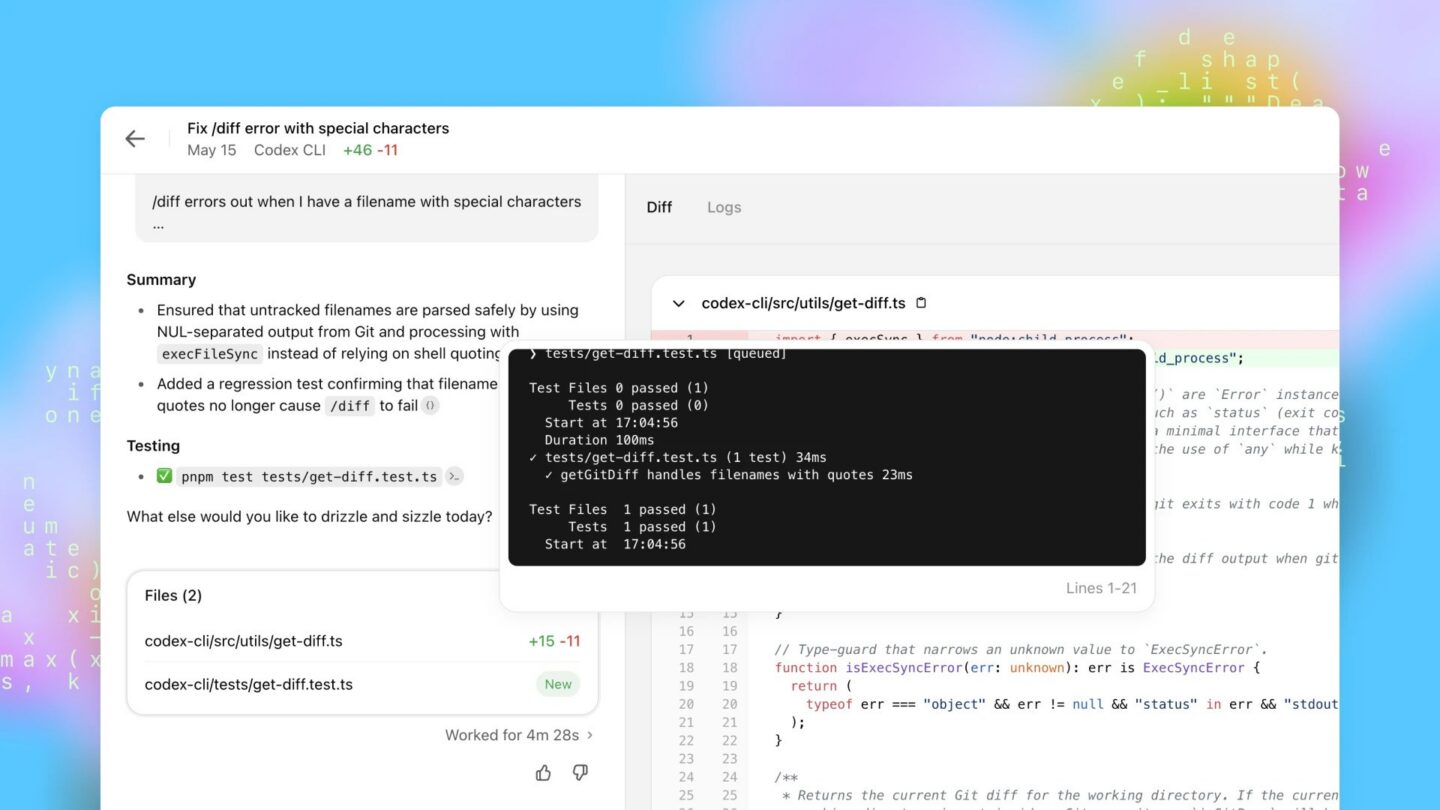
source: OpenAI
That makes it feel closer to assigning work to a teammate than asking for a snippet.
You can use it in a few forms depending on how you like to work.
There’s a web app for managing tasks, a local terminal agent (Codex CLI), and a dedicated Codex app built as a “command center” for orchestrating agents across projects.
Each task runs in its own isolated environment preloaded with your repo, so Codex can edit files and run commands like tests, linters, and type checkers.
Run multiple tasks at once, then review each result separately instead of waiting on a single long conversation.
Add an AGENTS.md file to tell Codex how your repo works, which commands to run, and what standards to follow before it starts changing anything.
Trigger Codex reviews in PRs directly in GitHub, with feedback posted as a standard GitHub code review.
OpenAI Codex is available with paid ChatGPT plans:
Usage is included with these plans, and you can extend usage with ChatGPT credits if you hit limits.
If you run Codex with an API key, usage is billed by tokens based on the Codex model you choose.
GitHub Copilot is an AI coding assistant that perfectly mirrors real development workflows.
You can use it in your IDE for inline completions and chat and in pull requests for reviews and fixes.
And in GitHub itself, where you can hand it work like an issue and have it open a pull request you can review.

source: GitHub Copilot
What makes Copilot feel different from most “editor-only” tools is exactly that workflow coverage.
It starts with autocomplete and Copilot Chat in the IDE, then extends into the platform with features like a coding agent, code review, and the ability to choose between different models.
Suggests whole lines or blocks as you type, with support for changing the completion model in supported editors.
Lets you ask questions about code, generate code, and iterate in chat, with model choice and auto model selection available.
You can assign an issue to Copilot and it will make the changes and open a pull request for review. You can also ask it to create a pull request from Copilot Chat.
Supports multiple models and lets you pick the one that fits the task, for both chat and inline suggestions.
GitHub Copilot offers a free plan with 50 agent mode or chat requests and 2,000 completions per month. They also offer several paid plans:
Tabnine is an AI coding assistant built for companies that want AI help without giving up control of their code.
It runs as an IDE plugin with code completions and chat, and it can be deployed in the cloud, inside your VPC, on-premises, or fully air-gapped for maximum security.

source: Medium
The part that makes Tabnine stand out is the security and governance angle.
Tabnine states it has zero code retention, doesn’t train on your code, and supports enterprise compliance and controls, including options like SSO for private deployments.
Works as an IDE assistant with context-aware suggestions, plus chat for planning, writing, testing, reviewing, and maintaining code.
Can generate code from Jira issue requirements, then validate whether the code matches those requirements.
Helps you get oriented in unfamiliar projects with plain-language explanations of behaviors, dependencies, and structure.
Tabnine states it doesn’t store or share your code, and it doesn’t train its models on your code.
Tabnine offers one paid plan, priced at $59/user/month.
But, you get unlimited usage when you bring your own on-prem LLM or your own cloud LLM endpoint.
Lovable is a full-stack AI development platform that lets you build, iterate on, and deploy web apps by describing what you want in plain language.
It generates real code behind the scenes, so you can keep shipping past the prototype stage instead of getting stuck in a demo.

source: Lovable
Your projects can sync or export to a GitHub repo you control, so you can review changes, keep working outside the platform, or hand the code over to your engineering team.
It’s also built for the full loop, not just UI generation. The product is designed around building the app, connecting the backend pieces, then publishing and iterating quickly.
You describe what you want, then review and iterate on the generated app in the same place.
You can add a PostgreSQL database, authentication, and other backend pieces through Lovable’s native Supabase integration.
Publish to a live URL, then push updates anytime. Access controls differ depending on your plan.
Connect your own domain with automatic setup or manual DNS, after you publish.
Lovable has a free plan with 5 daily credits, up to 30 per month. They also offer several paid plans:
You can buy one-time credit top-ups on Pro and Business in 50-credit blocks.
Hosting and embedded AI usage run on a separate usage-based balance, with every workspace getting a monthly included allowance.
Replit is a browser-based development workspace where you can create, run, and publish apps without local setup. You write code in the same tab where you run it, preview it, and ship it.
Where Replit stands out is the “idea to running app” loop powered by Replit Agent.

source: Qodo
You describe what you want in plain language and the agent can scaffold a project, add features, and update code across the repo, instead of only suggesting snippets.
And from the workspace you can publish apps, and add backend basics like a built-in SQL database that Agent can wire up for you.
Describe what you want in everyday language. Agent can set up an app from scratch and keep adding features as you iterate.
Add persistent data storage with a managed SQL database, then connect to it from your app. Agent can also wire it up for you.
Store sensitive values as encrypted environment variables in the workspace.
You can work together with several people in the same workspace with Multiplayer.
Replit offers a free Starter plan and 3 paid plans:
Each plan includes monthly credits that apply to platform usage (Agent, deployments, databases, and more).
Once you use them up, you move to pay-as-you-go. Credits reset monthly and don’t roll over.
Base44 is an AI app builder that turns a plain-language prompt into a working, full-stack web app.
You can generate an app with core building blocks like authentication, database functionality, and analytics, then keep iterating in the same workspace.

source: UI Bakery
It’s designed to ship complete internal tools, customer portals, and small SaaS-style apps without you stitching together a stack first.
Add sign-up, login, and user management without setting up a separate auth service first.
Store data and add backend logic through built-in database functionality and backend functions.
Apps are hosted by default, so a new app is live and shareable right away.
Connect your own subdomain by adding a CNAME record in your DNS provider.
Connect GitHub so you can work with your app code in a repo-based workflow.
Base44 has a free version with 25 message credits and 100 integration credits per month. They also offer several paid plans:
Credits reset on your monthly cycle and don’t roll over.
v0 is an AI agent for building web UI and full-stack apps from prompts, with an output you can actually ship.
It generates production-ready React code, with Tailwind and shadcn/ui patterns baked in, so you can iterate on real components instead of mockups.

source: Peerlist
It also supports a “prompt to prototype to PR” workflow, where you can refine designs, update copy, generate features, then deploy or open a pull request for review.
Deploy to production immediately, or keep it as a live prototype while you iterate.
Connect a repo to track changes, collaborate, and open pull requests for review.
Pull UI components into v0, edit them with natural-language changes, then paste them into your app.
Share chats and collaborate with your team, with centralized billing through Vercel.
v0 has a free plan with a 7 messages/day limit. They also have a range of paid plans:
On Premium, Team, and Business you can buy extra credits when you run out.
Monthly credits reset on your billing date and do not roll over, and purchased credits expire after a year.
Google Antigravity is an agent-first development platform from Google Labs that turns the IDE into a place where you manage autonomous coding agents.
Instead of focusing on autocomplete first, it gives you a “Mission Control” style workspace.

source: Google Antigravity
Agents can plan work, make changes across the repo, run terminal commands, and even use a built-in browser to test and verify what they shipped.
You get a familiar IDE surface for hands-on work, plus AI commands and completions when you want them.
A separate “mission control” view where you can spawn, orchestrate, and observe agents working across different workspaces.
Agents can plan and execute tasks, run terminal commands, and use an integrated browser to test and verify changes.
Instead of scrolling through tool logs, you get deliverables like task lists, plans, screenshots, and browser recordings you can review and comment on.
The browser agent can click, scroll, type, and read logs. You can restrict where it’s allowed to browse to reduce risk.
You can get access to Antigravity via paid plans for Google One, Google Workspace, and Google Cloud.
Bolt is a browser-based AI app builder that turns a prompt into a working web app you can run and deploy, without setting up a local dev environment.
It gives you an editor, a live runtime, and an agent that can make changes across files, install packages, and iterate based on what breaks.

source: UI Bakery
And since it’s built by StackBlitz, it leans into “instant dev environments” as the default experience, so you can go from idea to a deployed app directly in the browser.
Run Node.js, install npm packages, and start servers directly in the browser using StackBlitz WebContainers.
The agent can work across the filesystem, package manager, terminal, and browser console so it can build, run, and fix an app, not just generate code.
Bolt supports real package installs and server-side runtimes, which is the core difference versus UI-only generators.
Deploy to production and share what you built through a URL without leaving the workspace.
Manage domains, hosting, and databases in one place without adding extra third-party tools.
Bolt offers a free plan with a 300k daily token limit. And they offer 3 paid plans:
Paid-plan tokens can roll over (free-plan tokens don’t), and each paid team member gets their own monthly token allotment.
Wispr Flow is a cross-app voice keyboard that lets you dictate anywhere you write. Slack, docs, email, tickets, and even code editors.
It runs on Mac, Windows, and iPhone, so you can keep the same “talk instead of type” workflow across devices.

source: Medium
What makes it stand out in a “vibe coding” context is that you can turn spoken input into usable text for the place you’re working in, with formatting that adapts to context.
It also has developer-focused handling for variables and code syntax, so you don’t have to clean up naming conventions after dictation.
There are also developer-focused integrations that tie into Cursor and Windsurf, so you can do more inside your editor without jumping back to the keyboard.
Flow types into any text field across your desktop apps and browser, so you can use it in Slack, docs, email, and more.
It can handle backtracking, remove filler words, format numbered lists, and add punctuation based on how you speak.
Save custom terms, create voice shortcuts for repeated text, and set tone preferences for different writing contexts.
Highlight text, then speak an edit like “make this shorter” or “turn this into bullets” and Flow replaces the selection.
Variable recognition and file tagging help Flow behave better in coding contexts, including Cursor and Windsurf.
Wispr Flow has a free plan with a 2,000 words per week limit.
They also have 2 paid plans: Flow Pro ($12/month) and Flow Enterprise, with custom pricing and advanced control.
Windsurf is an AI-native editor built around an agent called Cascade.
It combines an IDE with an assistant that can move past autocomplete and help with multi-step work across your repo, like making edits in multiple files and checking errors

source: Analytics Vidhya
Cascade runs in Code and Chat modes, can call tools, and keeps real-time context from your editor and terminal so it can keep work moving.
Windsurf indexes your codebase and retrieves relevant files and snippets so responses stay grounded in your project.
You can guide what the assistant should keep in scope, which helps when you’re working on a specific area of the code.
Pick different models inside Cascade depending on the task, with clear credit costs per model.
Ask questions about your codebase with context retrieval built in, without leaving the IDE.
Pros: Great for multi-file work, strong IDE integration, good at explaining code
Cons: Can slow down with huge projects, cost control can be tricky
Windsurf has a paid plan with 25 prompt credits/month. They also have 3 paid plans:
Amazon Q Developer is a generative AI assistant built for developers who work in AWS day to day.
It can answer AWS-specific questions, help you build and operate workloads on Amazon Web Services, and guide you through AWS services, SDKs, and best practices with the AWS context baked in.

source: AWS
Alongside code chat and completions, it includes security scanning for vulnerabilities in your code and tools for code upgrades and improvements.
Use Q in the terminal for command help and AI chat, including over SSH.
Scan a file or an entire codebase for security issues and code quality problems, with optional auto reviews as you write.
Upgrade Java language versions and dependencies with a plan, diff, and summary you review before accepting changes.
Supports popular environments like JetBrains IDEs, VS Code, Visual Studio, and Eclipse.
Pros: Strong fit for AWS users, wide IDE integration
Cons: Quality varies outside of AWS
Amazon Q Developer has a free plan with 50 agentic requests per month and 1,000 lines of code per month for Java upgrades.
They also offer a paid Pro plan ($19/user/month) with higher usage limits and an admin dashboard and policy management.
JetBrains AI Assistant brings AI into the JetBrains IDEs devs already use every day, with the assistant sitting next to the editor, navigation, refactors, and inspections.
That tight IDE integration is the point.
You can ask questions about code with project context, generate and edit code, create tests, and apply changes across one or more files without leaving the IDE.

source: JetBrains
It’s also one of the more flexible setups on this list. You can use JetBrains’ own AI service with access to multiple cloud models, or run with your own provider key. .
Ask questions about the code you’re looking at, then apply suggested changes without leaving the editor.
Let it make coordinated changes across multiple files, then review the list of affected files and apply the diff from chat.
Autocompletes lines, blocks, and whole functions based on what it sees in your project, including naming and style cues.
Explain code and common errors, find issues, and suggest fixes. Support varies by IDE, but the core “explain and fix” flow is consistent.
Use your own API key with supported providers, or connect local model runners like Ollama and LM Studio for some workflows.
JetBrains AI Assistant has a Free tier with a small monthly quota, while paid plans give more cloud quota each month:
You can top up credits if you use more than your monthly quota.
Start with the tool that changes your workflow the least.
For most teams, that’s an IDE assistant first. It speeds up the boring parts (first drafts, tests, small refactors) while you keep the same branch strategy, code review, CI checks, and release process.
Move to agent-style tools next when you’re ready to delegate multi-file tasks and review the output like a real PR. Save app builders for cases where you want “working prototype fast,” not “better code suggestions.”
Use an app builder when you need a working app, not just help writing code.
That usually means things like:
They’re also great when non-engineers want to prototype an idea without waiting around for developers.
Stick to coding assitants when you’re working in an existing codebase, dealing with strict security constraints, or building something complex with a lot of edge cases.
Three big ones show up again and again.
First, it’s accidentally sharing sensitive data in prompts, logs, or pasted code. Don’t paste secrets or customer data. Use privacy and training opt-out settings where available.
Second, agents doing unsafe things. Treat terminal access like a power tool and require approval for commands, keep agent work in isolated environments, and never let it touch production.
Third, unsafe code that looks fine. Keep your existing security checks like static analysis, dependency scanning, security checks in CI, and code reviews even if the first draft came from AI.
AI tools can speed you up a lot. But they can also create more work later if you pick the wrong tool.
Start with what matches how you already work.
If you want faster daily coding, an IDE assistant or AI-first editor is usually the easiest win.
If you need help with multi-file tasks, agents can take on more, as long as you keep review and CI tight.
And if you need a working app fast, app builders will get you there.
Whatever you choose, keep to the same standards: clear requirements, readable diffs, tests, and security checks.
AI is just helps you get to the first version faster.

Skilled in React Native, iOS and backend, Toni has a demonstrated knowledge of the information technology and services industry, with plenty of hands-on experience to back it up. He’s also an experienced Cloud engineer in Amazon Web Services (AWS), passionate about leveraging cloud technologies to improve the agility and efficiency of businesses. One of Toni’s most special traits is his talent for online shopping. In fact, our delivery guy is convinced that ‘Toni Vujević’ is a pseudonym for all DECODErs.
A practical guide to the tools and technologies shaping custom software development in 2026, from frontend and backend to cloud and databases.

A practical comparison of Cursor and Claude Code to help you choose the right AI tool for your development workflow.

Here, we'll break down how the EU AI Act impact AI software development and show you how to stay compliant with the law going forward.